Zigbee OTA Updates
This documentation explains OTA (over-the-air) firmware updates of
Zigbee devices using the deCONZ
software and the Zigbee gateways
ConBee II, ConBee III and RaspBee II.
Requirements
- Minimum deCONZ version V.2.33.0
- ConBee II, ConBee III, or RaspBee II
- An internet connection is required to download the OTA firmware files
Perform OTA update
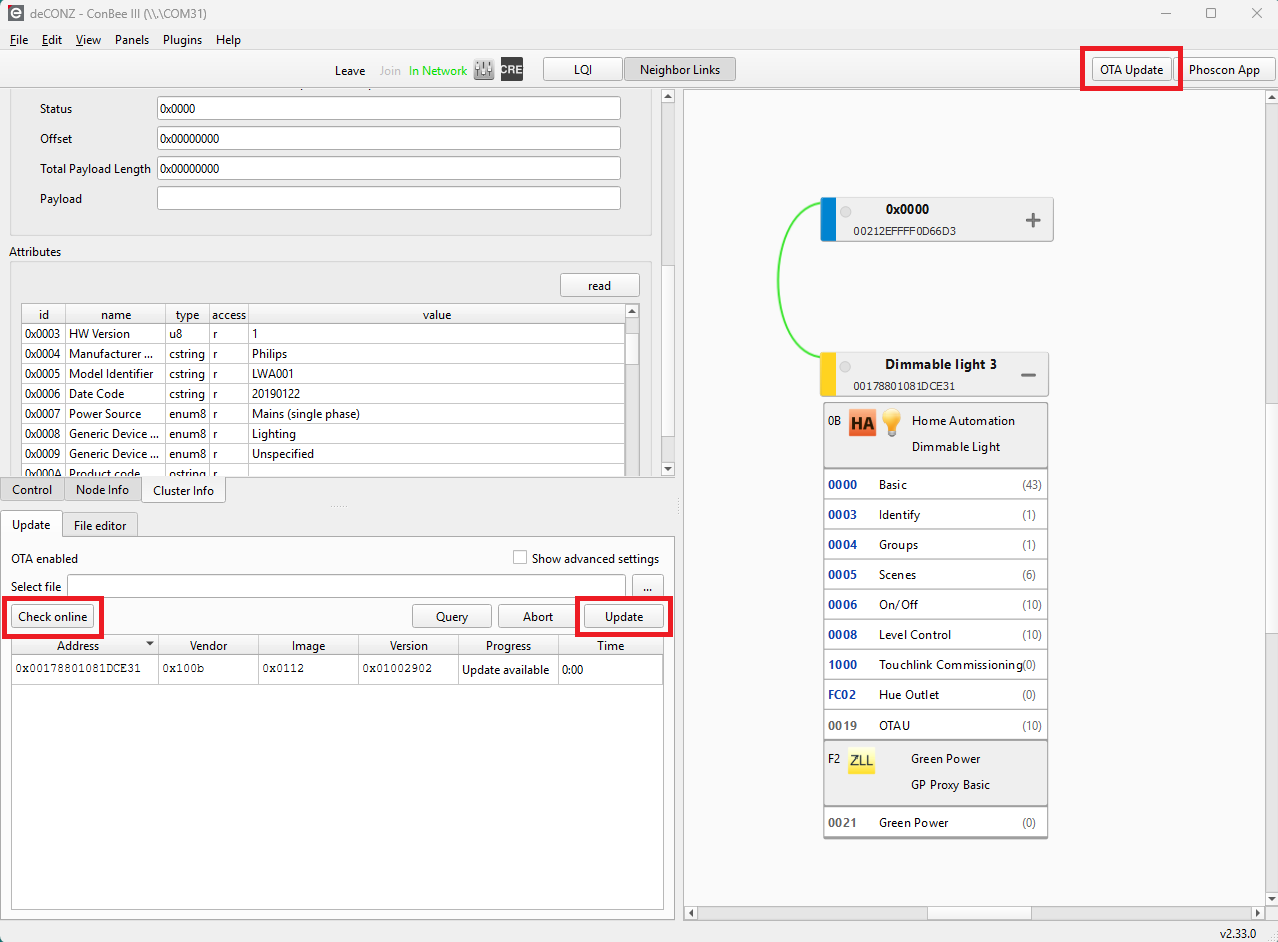
Pair the Zigbee device with the Zigbee network for the firmware update. To do this, open the
Control
panel in deCONZ via thePanels
tab, selectPairing,
and activateEnable permit join.
The network will now remain open for 60 seconds to allow new Zigbee devices to be paired.Open the OTA dialog by pressing the button.
Select the Zigbee device.
Press the
Check Online
button and wait a few seconds. deCONZ will now check if a new OTA file is available.As soon as the status changes from
No File
toUpdate available,
the OTA process can be started by pressing theUpdate
button. Sleepy Zigbee devices such as buttons, switches, and sensors often need to be manually woken up by pressing a button before the update process can begin.The entire update process can take 10 to 30 minutes. During this time, the Zigbee device being updated must not be disconnected from the power supply. After a successful update, the Zigbee device will restart automatically.
Done!
Functionality and instructions
- The search for new updates is never automatic.
- The initial download of
index.jsonis complete as soon as the Check online button is clicked. This also triggers an OTA Image Notify Request to the selected Zigbee devices to obtain the currently installed firmware version, image type, etc. - If a newer firmware version is available for the Zigbee device, the
status
Update available
will be displayed in the progress column. - After clicking the Update button, the update is queued and should begin shortly thereafter.
- Zigbee devices such as buttons, switches, and sensors often need to be manually woken up by pressing a button or similar action.
- After the initial download of the
index.jsonfile, updates will also be displayed for other Zigbee devices, provided the image type and manufacturer code are known. Many Zigbee devices regularly query the OTA server, e.g., Philips Hue devices. - Existing firmware files will not be downloaded again, as all local
files are indexed using their SHA-512 checksum and compared to the
SHA-512 in the
index.jsonfile. - Currently, only upgrades are supported. Downgrades require manually selecting a file from the hard drive or device memory. In the future, this will be added to the deCONZ user interface, allowing users to select the firmware version from a list.
- By default, OTA files are retrieved from the well-maintained JSON index Koenkk/zigbee-OTA, which contains links to the original OTA files as well as a GitHub-based mirror. The most up-to-date JSON index containing all OTA files can be found here.